Reporting
Note
Enables for system admins to get better understadning and baseline information about events and trends. PhenixID server comes with a number of predefined reports. A report is categorised as either System OR Authentication.
PhenixID server saves all events indefinitely. Purging of old data must be done manually.
Executing a report
Expand the menu for System OR Authentication. Select appropriate report by clicking. Depending on the report selected the system will either prompt for additional input or execute the report.
Once executed the report admin can export the result, copy to clip board or send to printer.
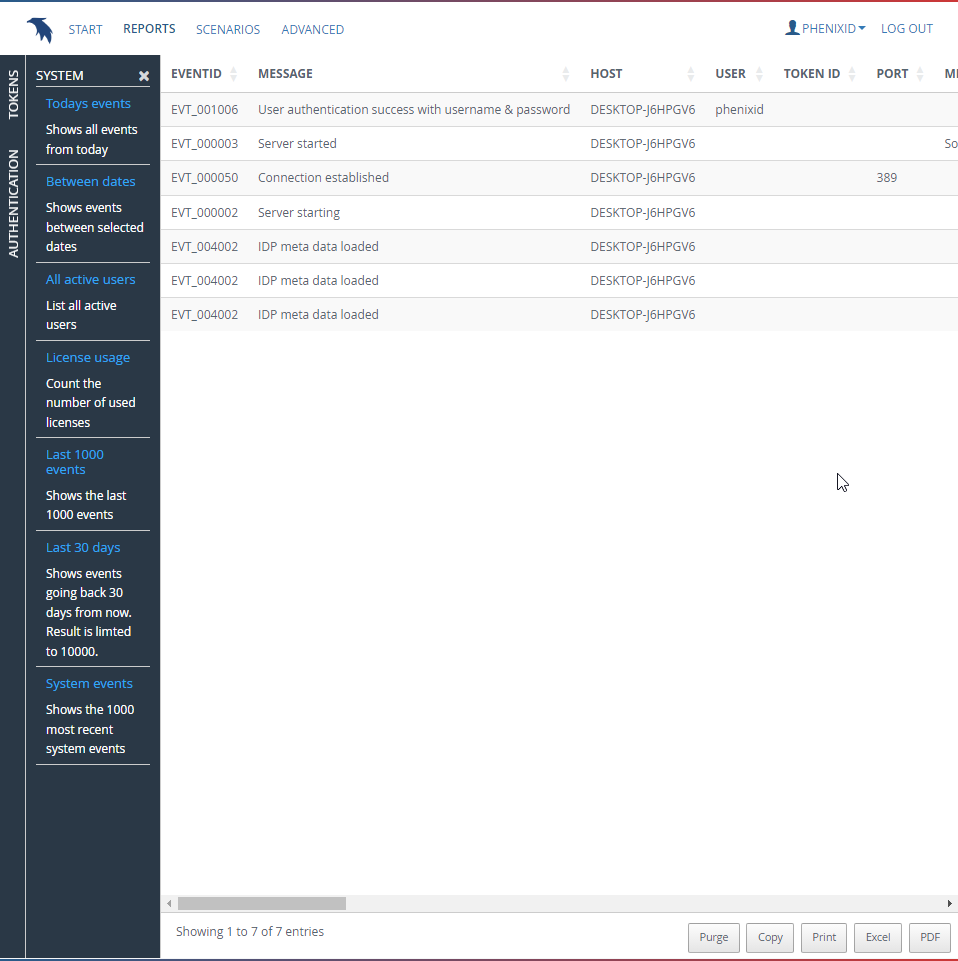
Extending reports
Reports are stored as json files. Report files are loaded from <installtion_root>/mods/com.phenixidentity~phenix-prism-report~
Warning
Reports use "generic" SQL. When externalising the database it may be required to edit the default reports due to syntax/language differences in the target system.
Adding a custom report
Ultimately the report is just a SQL query making it flexible and easy to customize. Currently the SQL query must render a result set meaning operations like group by, count etc probably will not work. A report can either execute with no user input or require additional user input.
Start by looking at the already existing report to get a sense for how it works. See if there is a report that almost fits the requirements. Then copy and paste the file with a new random name beside the already existing reports. Perform customisations to the newly created report. Reload the Reports view. Now the customised view should appear.
When customising a report, a rule of thumb is to limit the number of results to no more than 10 000 entries.
Available event ids available for the queries can be found in this list