BankID
Note
This guide scenario will create an authenticator that uses BankID for user authentication. It can be paired with a lookup against another user store to make sure only users from that user store are granted access.
Prerequisite
PAS does not trust the BankID service (the entity behind BankID) out of the box. Therefore, you must install the BankID root CA certificate into PAS.
Strictly speaking, this isn't part of the configuration,
as the certificate is added as a file and requires a restart.
For instructions, see: How to Add Trust for BankID CA
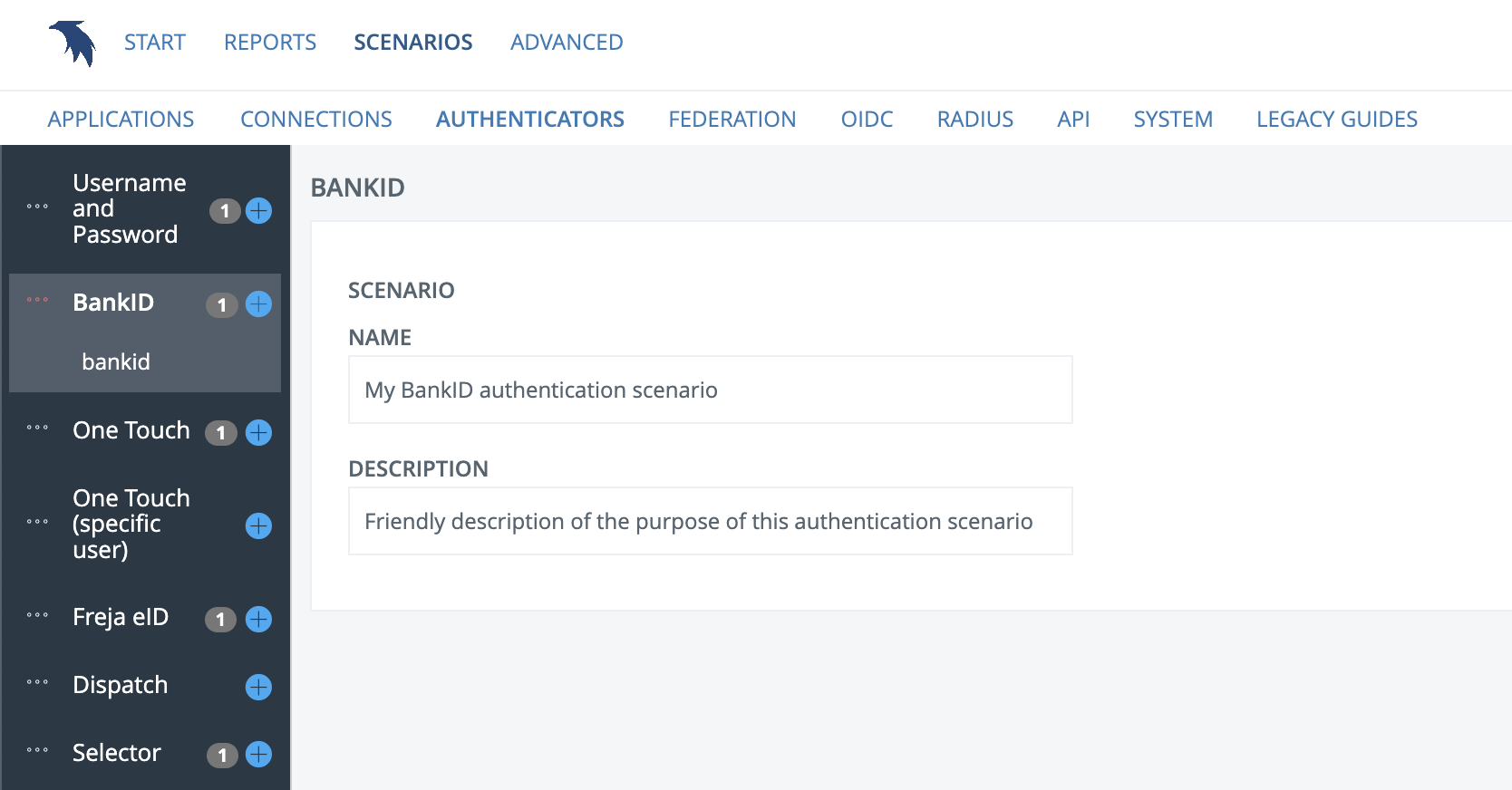
Name and Description
Input the name and description of your authenticator scenario
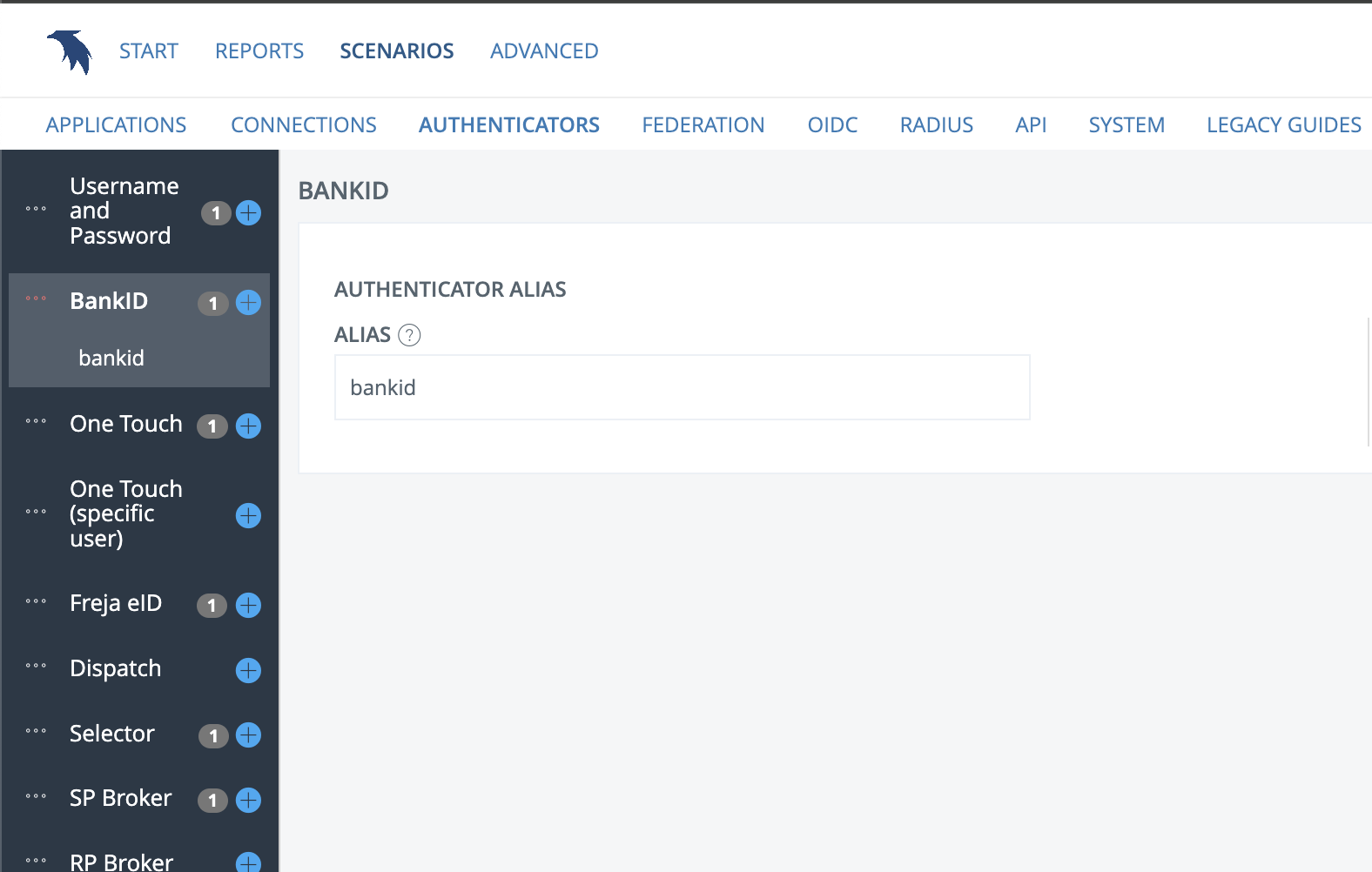
Alias
Here you enter an alias for your authenticator, which is a more user-friendly version of the authenticator's ID (which is a random, auto-generated UUID string).
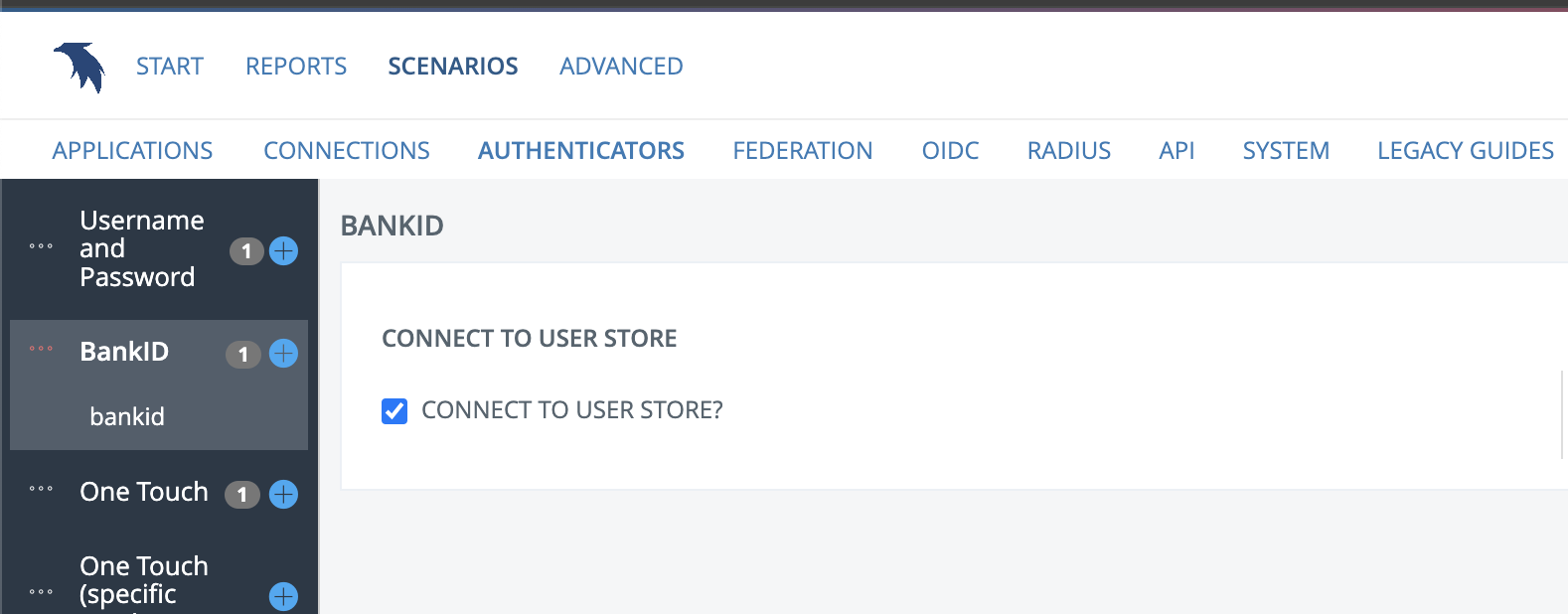
User store
Here you may configure which user store the authentication should be performed against.
BankID has its own user store so that anyone with a valid BankID can authenticate against it. If you want to use your own user store, but still use BankID as authentication, you may add a user store connection and create a search filter that will match the user returned from the BankID authentication with one in your own user store.
You may select an existing user store, or configure a new one. For instructions on configuring a new one, see the guide scenario for "Connections - LDAP" or "Connections - JDBC".
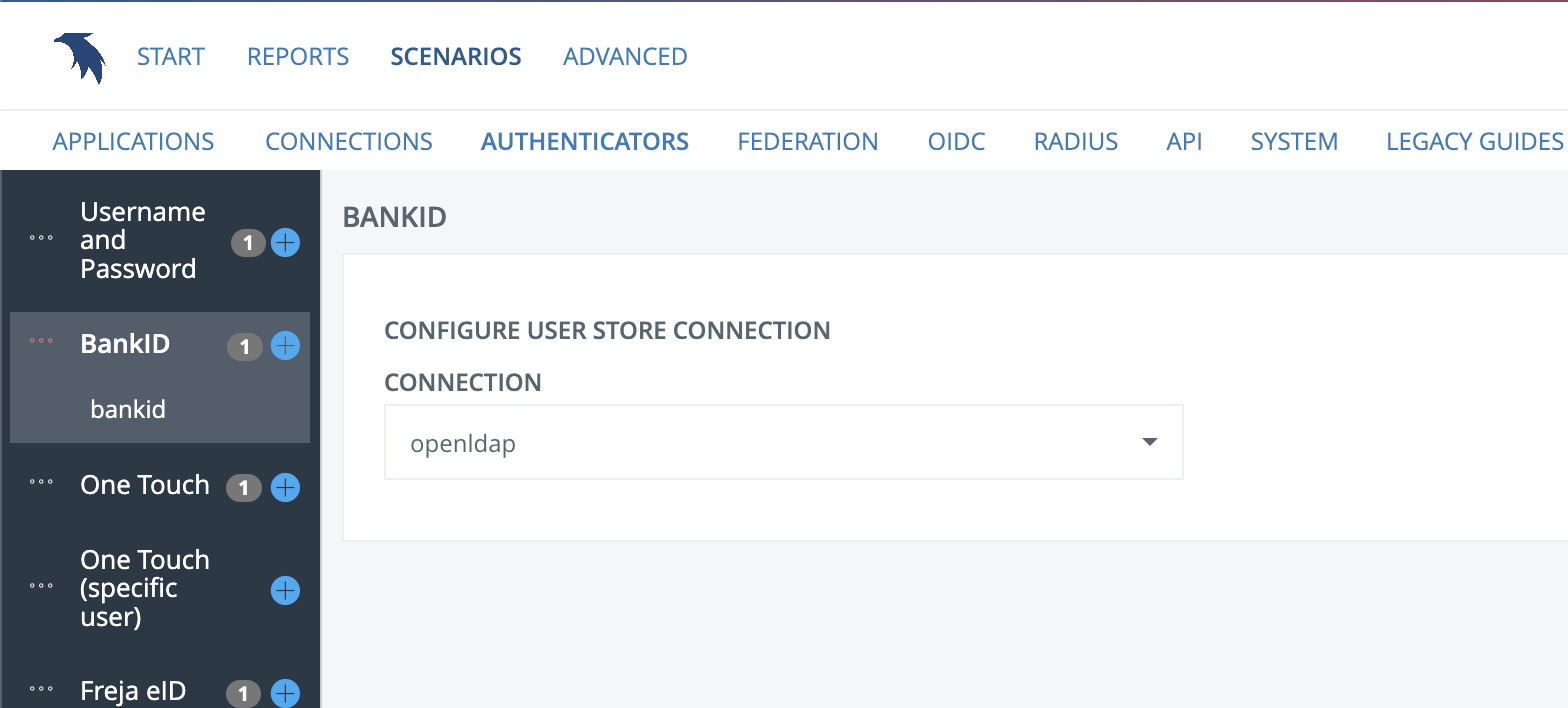
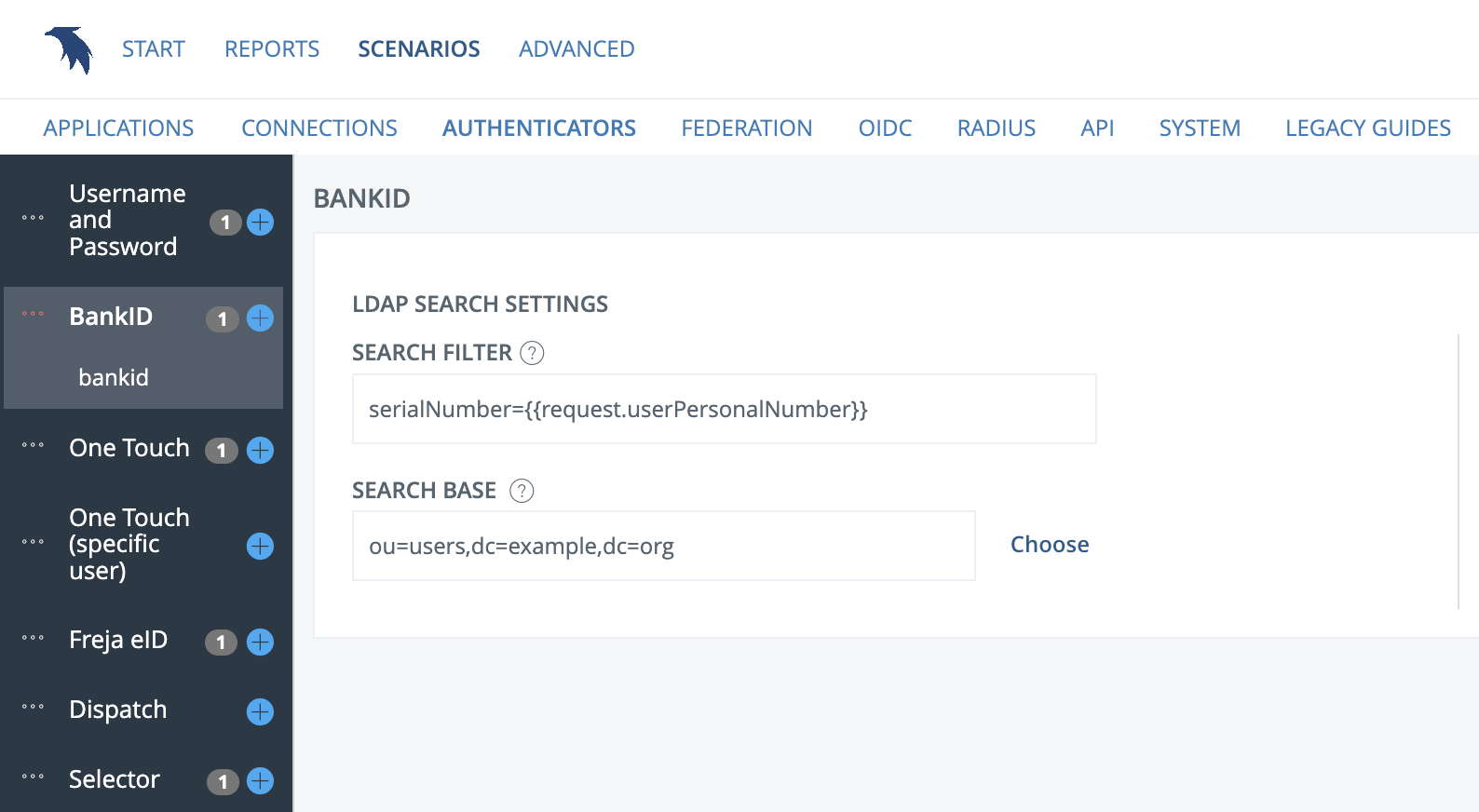
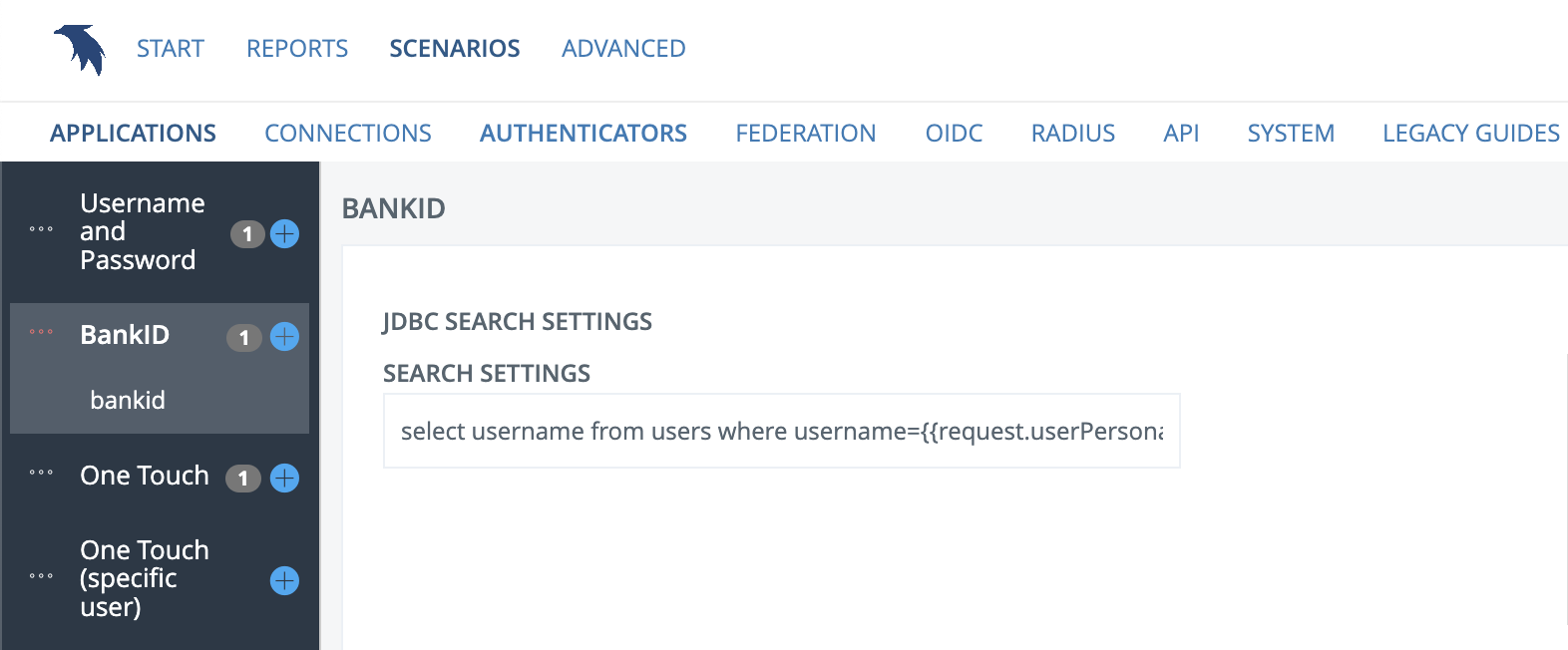
Search settings - only relevant if you use your own user store
Depending on whether your connection is LDAP or JDBC, your next step will look different. For LDAP, you enter your search filter such that the username that the user will enter on the web correlates with your userid-attribute in the directory. You also select the search base for the users by clicking "choose" and selecting the correct category for your users.
For JDBC you simply adjust the SQL query so that it will select the correct user. {{request.userPersonalNumber}} will resolve to the personal number returned by BankID. Adjust your search filter so that it matches the attribute in your user store.
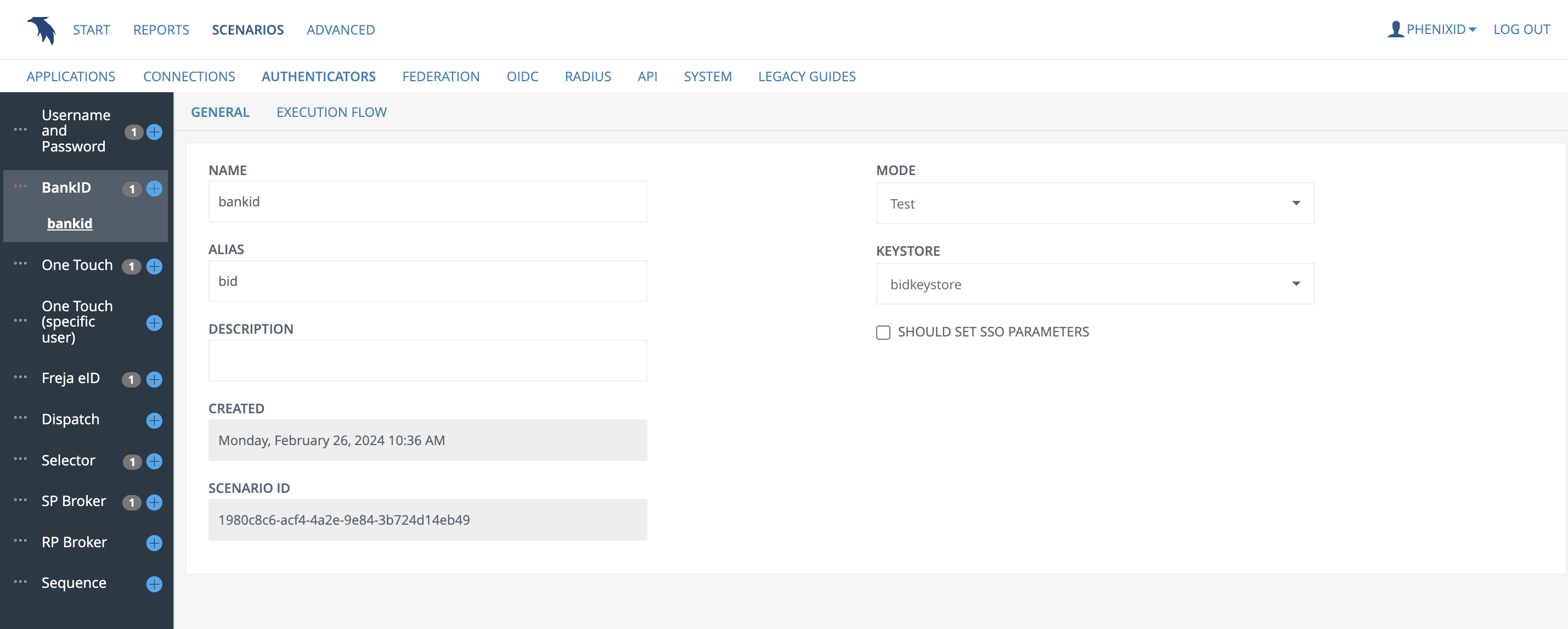
Mode
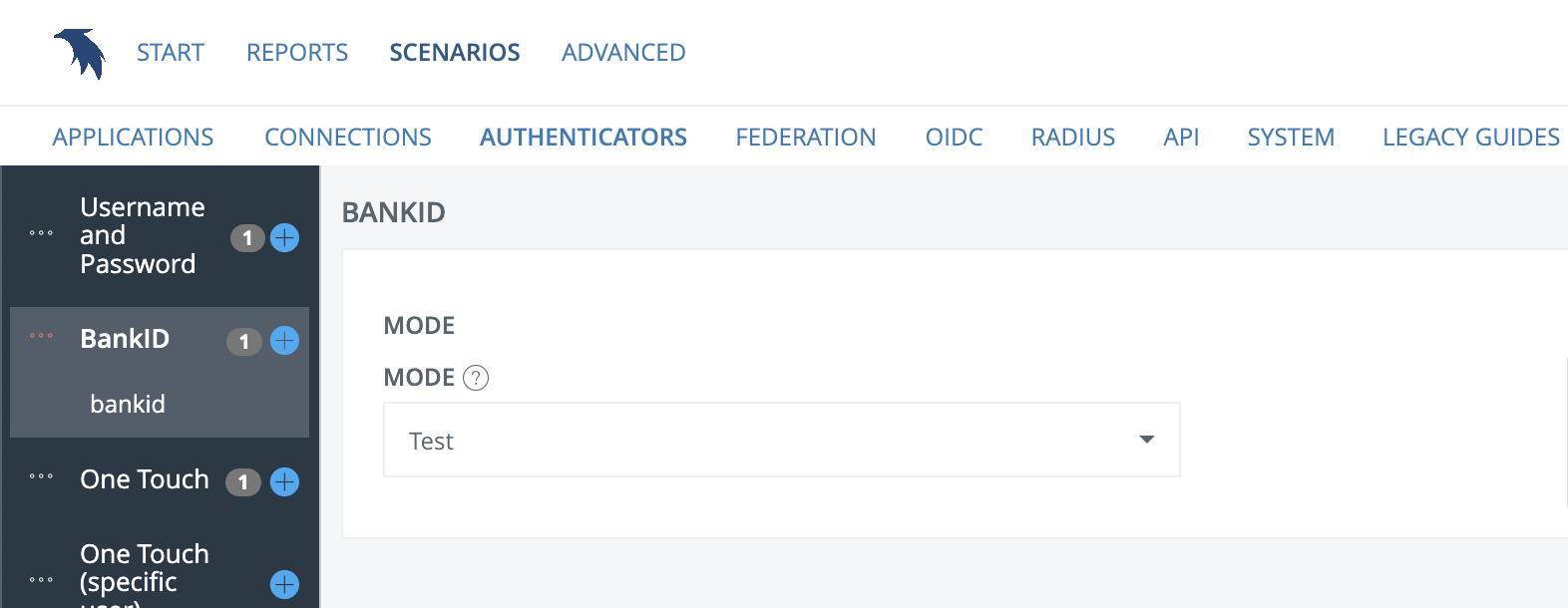
Select whether you want to use BankID in Test or Production mode. For the authenticator to work, this must match which keystore you select in the next step.
Keystore
Select which keystore you want to use. This keystore has to contain your BankID relying party certificate. You will need to contact BankID to get such a certificate yourself. It also needs to reflect the mode you select (test or production). You may create a new keystore in this step if you have not created one already.
Note
Your relying party certificate is a certificate that represents the app/service you are protecting. This is not BankID's own root CA, which is something we have already set, see top of this page.
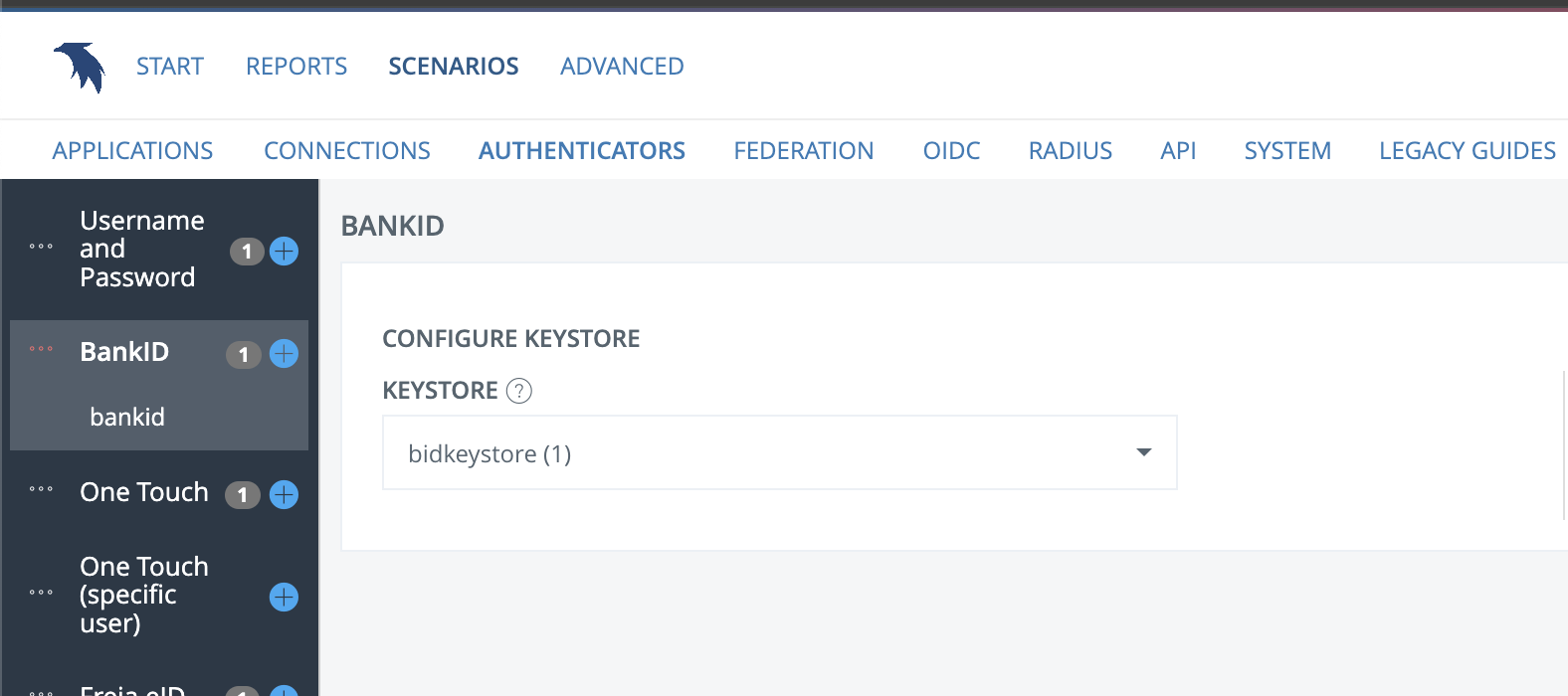
The result
Upon finishing the guide scenario, you will be met with an edit page where you can adjust additional settings. You can also see the "execution flow" tab where you can adjust the pipes and valves created in the scenario.