AWS MFA with PhenixID Authentication Services
Warning
Please note, this document is using the legacy authenticators - in order to use the new protocol agnostic authenticators, you need to apply relevant modifications to the configuration examples outlined in this article.
Summary
This document will guide you through the steps to enable multi-factor authentication for the AWS Management Console using SAML2.
This will enable usage of federated logins.
System Requirements
- PhenixID Authentication Server 3.0 or higher
- AWS instance administration rights
Instruction
Overview
This document will guide you through the steps to enable multi-factor authentication for AWS.
The user will be logged in through an IdP-initiated request. When logged in the user will be assigned a Role with attached Policies.
Configure PhenixID Authentication Services as Identity Provider
Login to Configuration Manager.
Setup PhenixID Authentication Services as a SAML IdP
Change `YOUR_PHENIXID_IDP_DOMAIN to the domain name of your PhenixID Authentication Services instance.
– EntityID =
https://YOUR_PHENIXID_IDP_DOMAIN/saml/idp/aws– Post SSO URL =
https://YOUR_PHENIXID_IDP_DOMAIN/saml/authenticate/awsSave changes.
Click IDENTITY PROVIDER->View SAML Metadata.
Save the Metadata as a xml-file
Set Post SLO URL =
https://YOUR_PHENIXID_IDP_DOMAIN/saml/authenticate/logout/Save the changes.
Add trust to AWS on PhenixID Authentication Services
- Login to configuration manager
- Open Scenarios->Federation->SAML Metadata upload
- Click the plus sign
- Add URL= https://signin.aws.amazon.com/static/saml-metadata.xml
- Save the changes.
Configure AWS
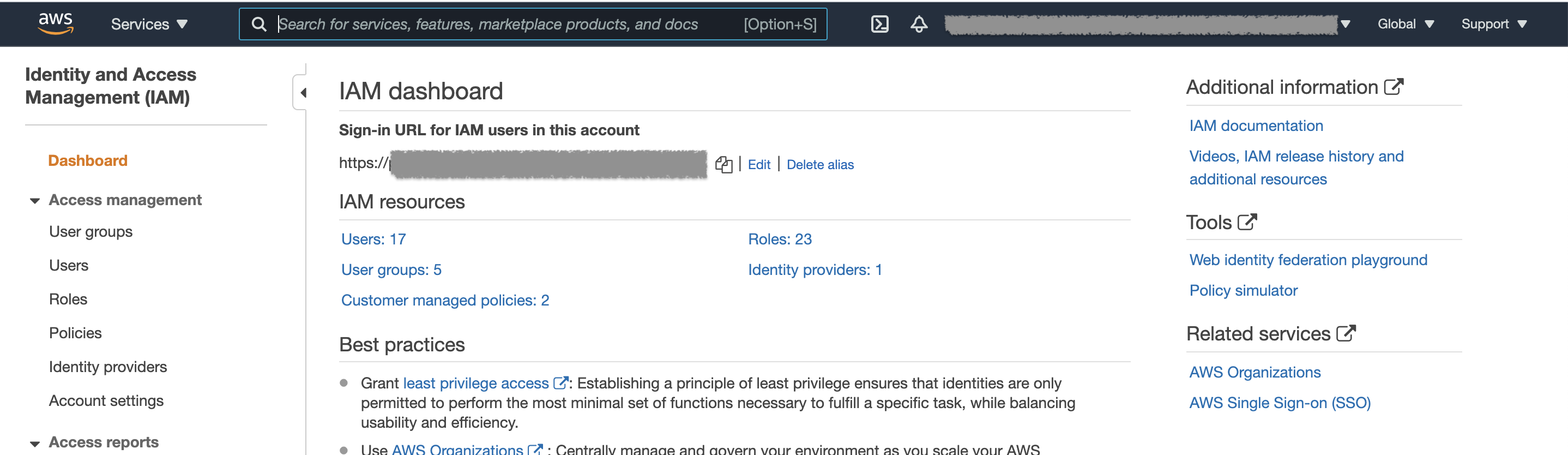
- Login as a Amazon admin to your Amazon instance
- In the left-hand menu, select Services
- Locate “Security, Identity, & Compliance”
- Select “IAM”
- Following steps are found under “Access Management”
Add SAML Identity provider
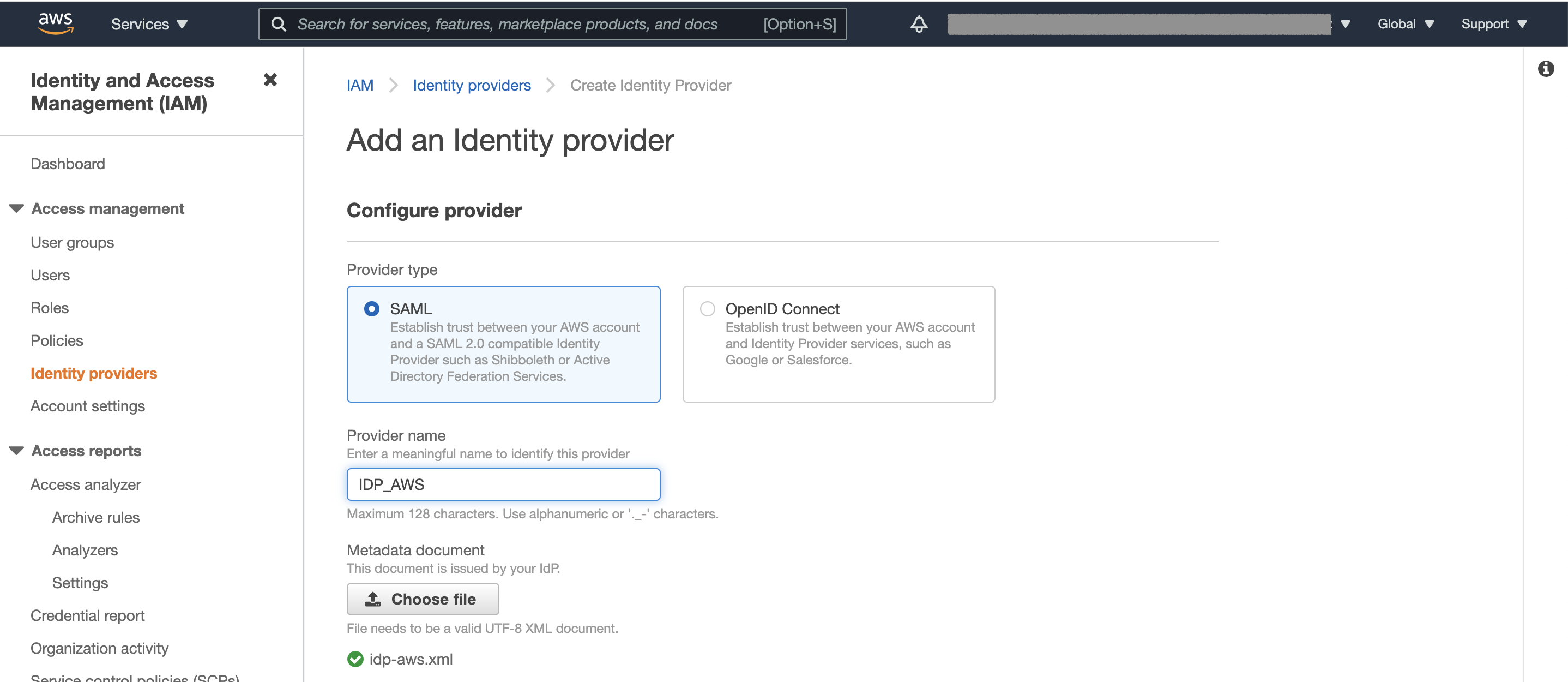
- Select “Identity providers”
- Select “Add provider”
- Choose SAML as provider type
- Set a Provider name
- Upload the SAML Metadata (xml-file) for your IDP.
- Continue with “Add provider”
Setup Role with policy
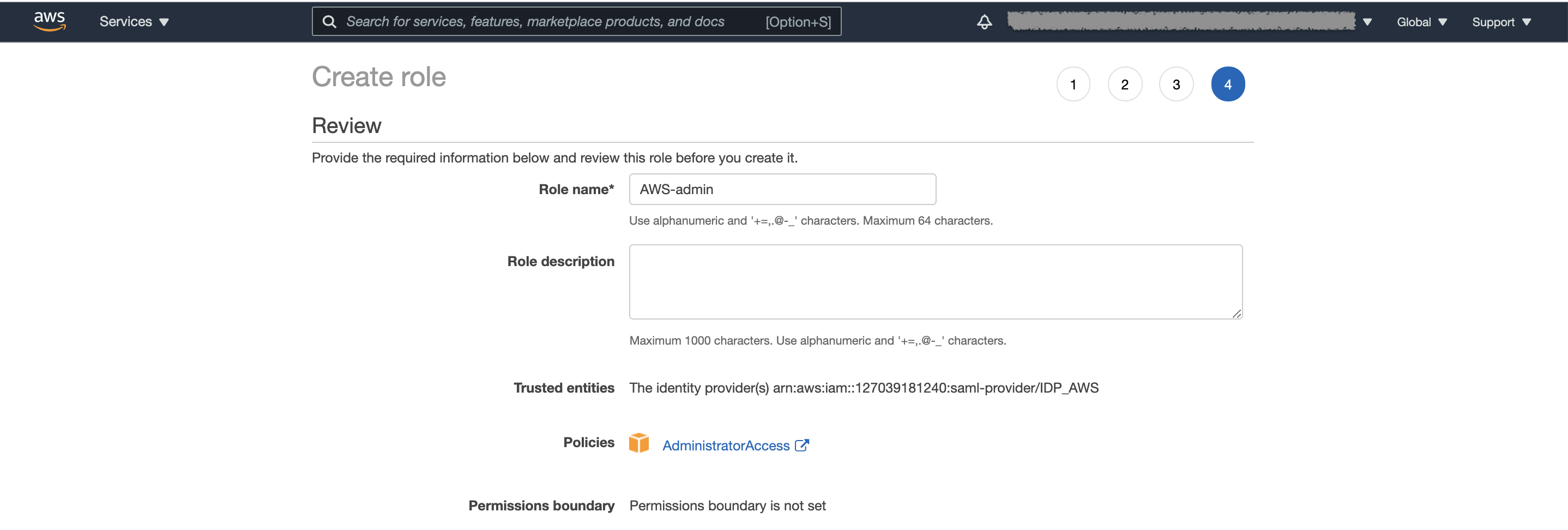
- Select “Roles”
- Select “Create role”
- Select “SAML 2.0 federation”
- Choose your SAML provider and select “Allow programmatic and AWS Management Console access”
- Continue with “Next:Permission”
- Select the permissions policy/policies the user shall have.
- Continue with “Next:Tags”
- Continue with “Next:Review”
- Set a Role name
- Continue with “Create role”
Collect AWS attributes
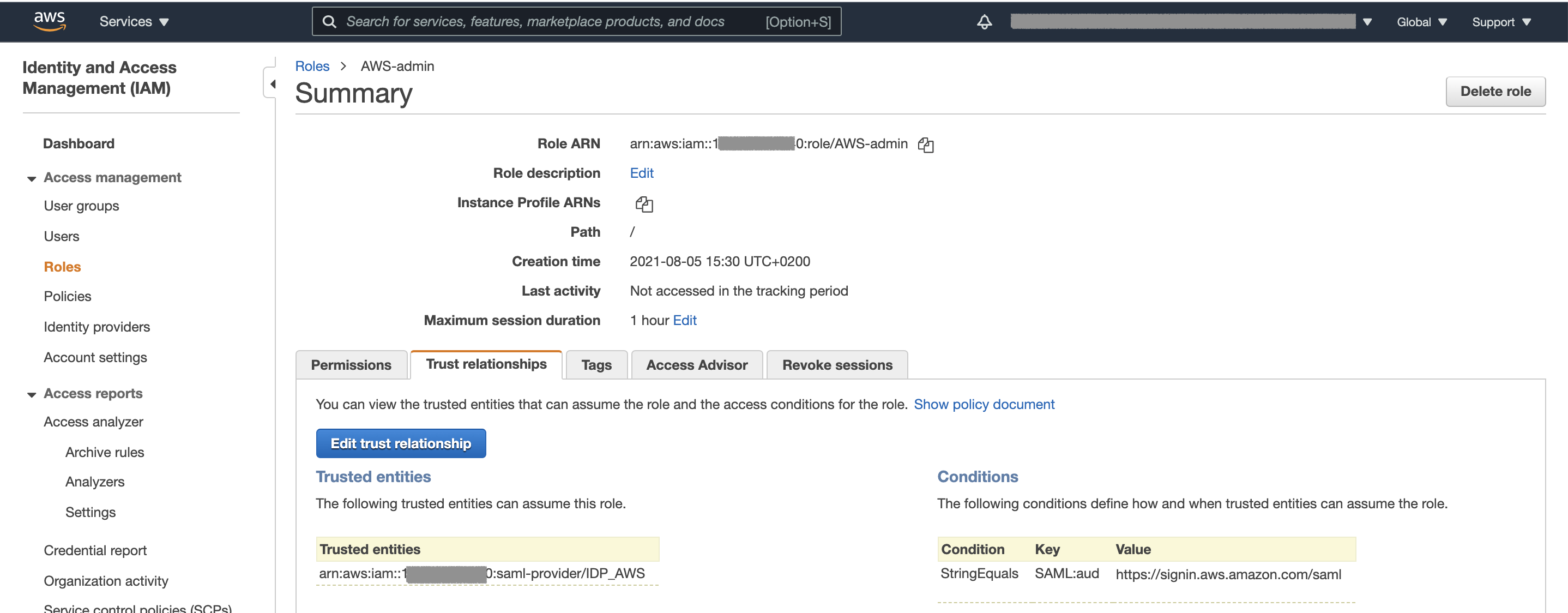
- Select "Roles"
- Select your role
- Make a note of "Role ARN":
arn:aws:iam::YOUR_ACCOUNT:role/YOUR_ROLE - Make a note of "Trusted entities":
arn:aws:iam::YOUR_ACCOUNT:saml-provider/YOUR_IDP
Configure PAS assertion
- Login to Configuration Manager.
- Locate the Scenario-Federation setup earlier for AWS.
- Select EXECUTION FLOW
- Add PropertyAddValve before AssertionProvider.
NAME=
https://aws.amazon.com/SAML/Attributes/RoleVALUE=
Role ARN,Trusted entities(from your notes)SPLITTER to other than comma (eg %).
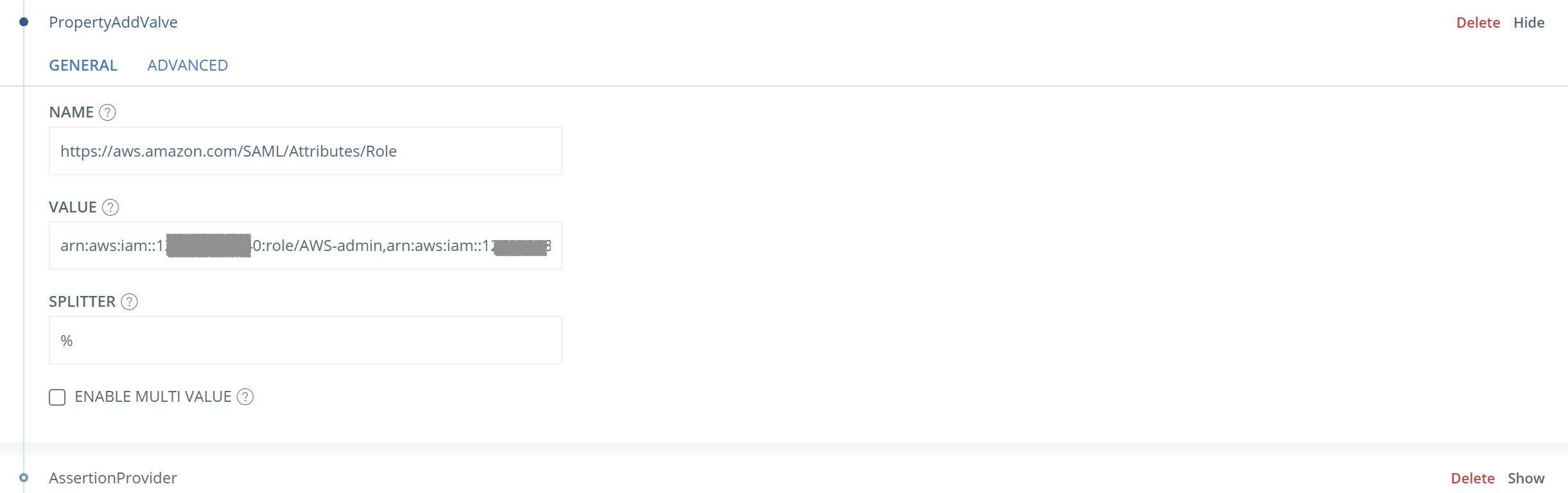
- Add PropertyAddValve before AssertionProvider.
NAME=
https://aws.amazon.com/SAML/Attributes/RoleSessionNameVALUE=
{{item.mail}}(replace “mail” if other identifier is used)
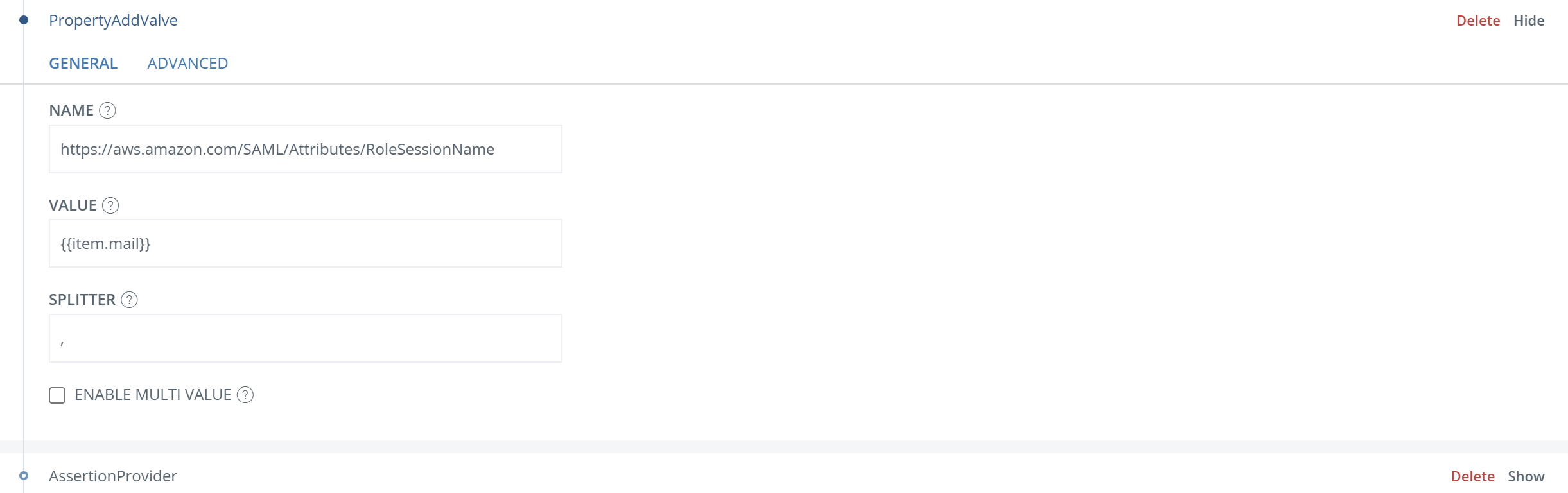
- Add PropertyAddValve before AssertionProvider.
- NAME=
https://aws.amazon.com/SAML/Attributes/SessionDuration - VALUE=
1800
- NAME=
- Add information to AssertionProvider:
- ADDITIONAL ATTRIBUTES=
https://aws.amazon.com/SAML/Attributes/Role,https://aws.amazon.com/SAML/Attributes/RoleSessionName,https://aws.amazon.com/SAML/Attributes/SessionDuration - SOURCE ID=
urn:amazon:webservices - Add fields to MISCELLANIOUS
signAssertion: TruenameIDnameIdFormat: urn:oasis:names:tc:SAML:2.0:nameid-format:persistent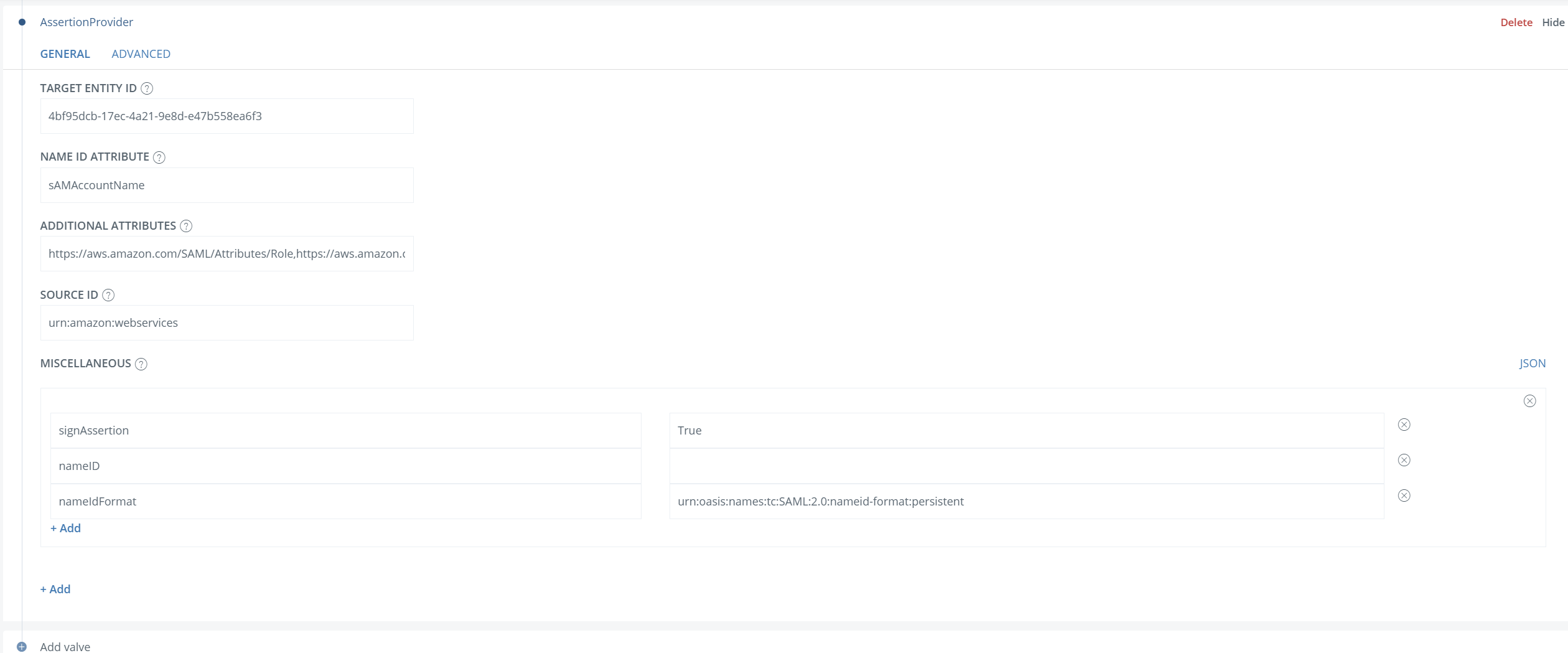
- Save the changes.
- ADDITIONAL ATTRIBUTES=
Test
- Browse to
https://YOUR_PHENIXID_IDP_DOMAIN/saml/authenticate/aws - Authenticate
- You should now be redirected to AWS and be logged in