Consume Entra ID (Azure AD) user authentication with PhenixID Authentication and Signing Services
Warning
Please note, this document is using the legacy authenticators - in order to use the new protocol agnostic authenticators, you need to apply relevant modifications to the configuration examples outlined in this article.
Note
See the article Consume Google user authentication with PhenixID Authentication and Signing Services for information on what adaptions to the instructions here that needs to be done in order to use the new authentication architecture that was introduced in PAS 5.1
Summary
This document will guide you through the steps to configure PhenixID Authentication Services and/or PhenixID Signing Services to consume user authentication from Azure AD.
PhenixID Authentication Services (PAS) will act as a SAML Service Provider against Azure AD SAML Identity Provider.
Background
Many organizations use Azure AD as the master identity store for all or parts of their user base. With PhenixID, you can:
- Add the second factor in a multifactor authentication flow where the first factor is internal Azure AD authentication.
- Sign documents and transactions electronically using your Azure AD account
- Protect web- and cloud apps (SAML SPs, OIDC RPs) with Azure AD authentication and PhenixID MFA
- Protect internal PhenixID web apps, such as the MyApps portal, with Azure AD authentication
System requirements
- PhenixID Authentication Services 4.0 or higher
- An Azure AD Global administrator account
Instruction
Configure PhenixID Authentication Services
Add authenticator
Login to Configuration Manager
Advanced->Authenticators-HTTP
Depending on the service you protect, you need to create an authenticator:
Protecting internal web application (for example Myapps, self service, signing) -> SAMLServiceProviderAuthN. Read more in this article: Internal Authentication
Protecting external service which is a SAML SP -> SAMLSPBroker. Read more in these articles:
Protecting external service which is an OIDC RP -> OIDCToSAMLBroker. Read more in these articles:
Make sure to set this parameter on the authenticator:
"targetIDP": "dummy-will-be-changed-later"
Example configuration (in this example the activateonetouch web app will be protected by Azure AD authentication):
{
  "id": "c0742d0c-6d01-47d2-8b37-f4f0ecd5988e",
  "alias": "c0742d0c-6d01-47d2-8b37-f4f0ecd5988e",
  "name": "SAMLServiceProviderAuthN",
  "displayName": "External IdP",
  "configuration": {
    "successURL": "/activateonetouch/",
    "sp": "https://x.phenixid.net/saml/sp",
    "pipeID": "assertionConsumer",
    "targetIDP": "dummy-will-be-changed-later",
    "acsUrl": "https://x.phenixid.net/activateonetouch/authenticate/c0742d0c-6d01-47d2-8b37-f4f0ecd5988e",
    "entityID": "https://x.phenixid.net/saml/sp"
  }
}
Fetch SAML SP Metadata
Fetch your sp metadata by opening the URL:
For a SAMLServiceProviderAuthN authenticator :
<acsUrl_in_authenticator_conf>?getSPMetaFor a SAMLSPBroker or OIDCToSAMLBroker authenticator :
<acsUrl_in_authenticator_conf>?getMetaSave the produced metadata to a xml file.
Open the metadata xml file in a text editor
Locate the entityID property value. Copy it. This will be used in later step.
Locate the AssertionConsumerService->Binding=”urn:oasis:names:tc:SAML:2.0:bindings:HTTP-POST“->Location value. Copy it. This will be used in later step.
Configure Azure AD
Login to Azure (https://portal.azure.com) with your Global administrator account
Navigate to Azure Active Directory
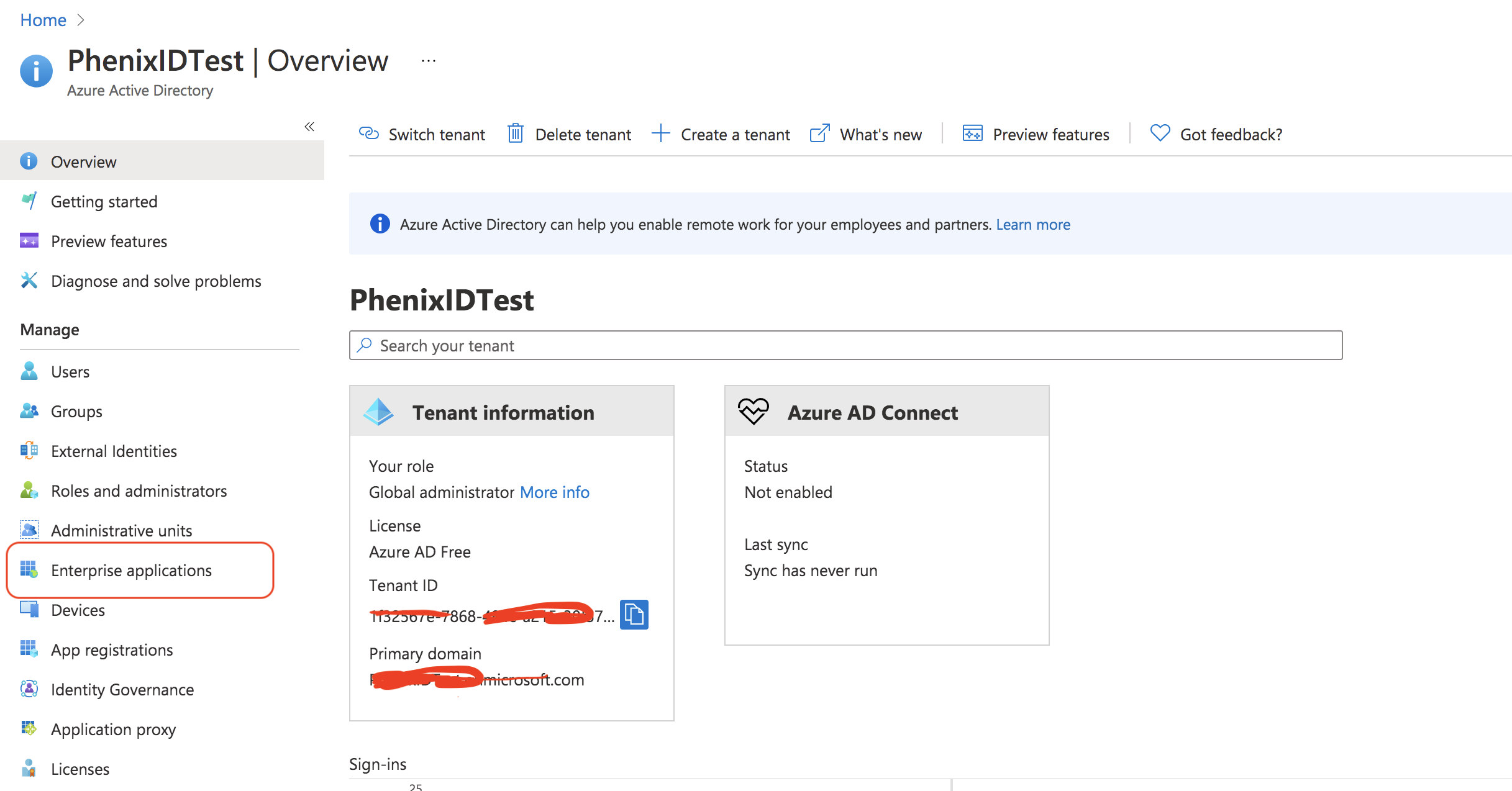
Click on Enterprise applications
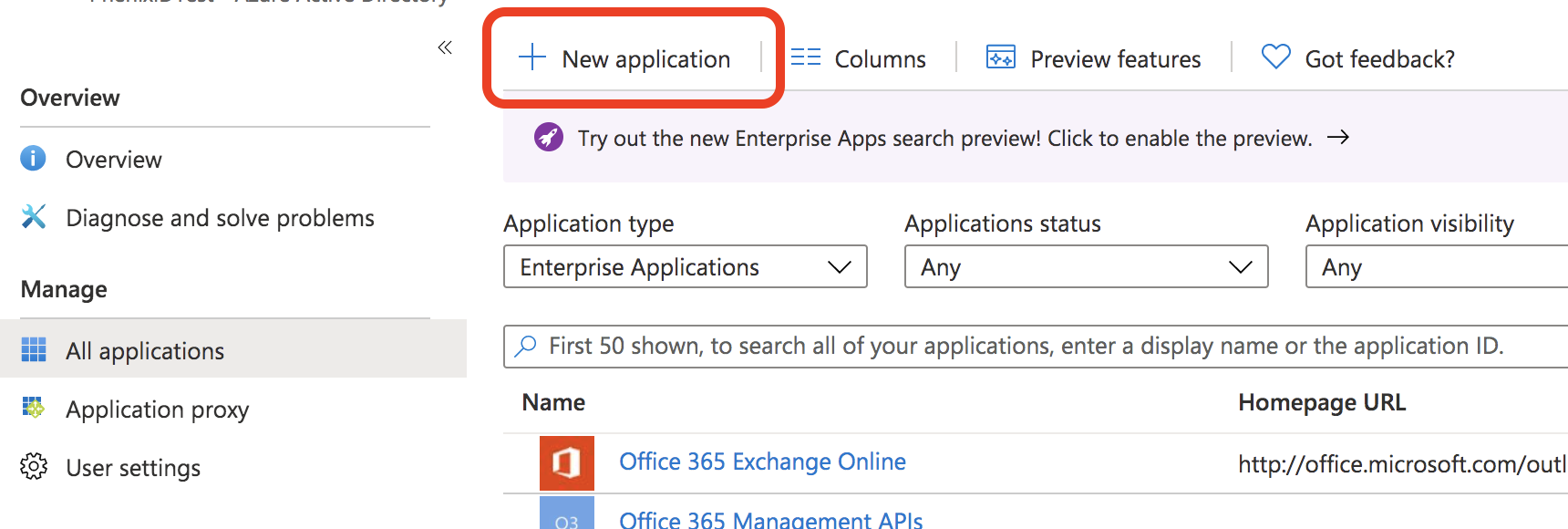
Click New application
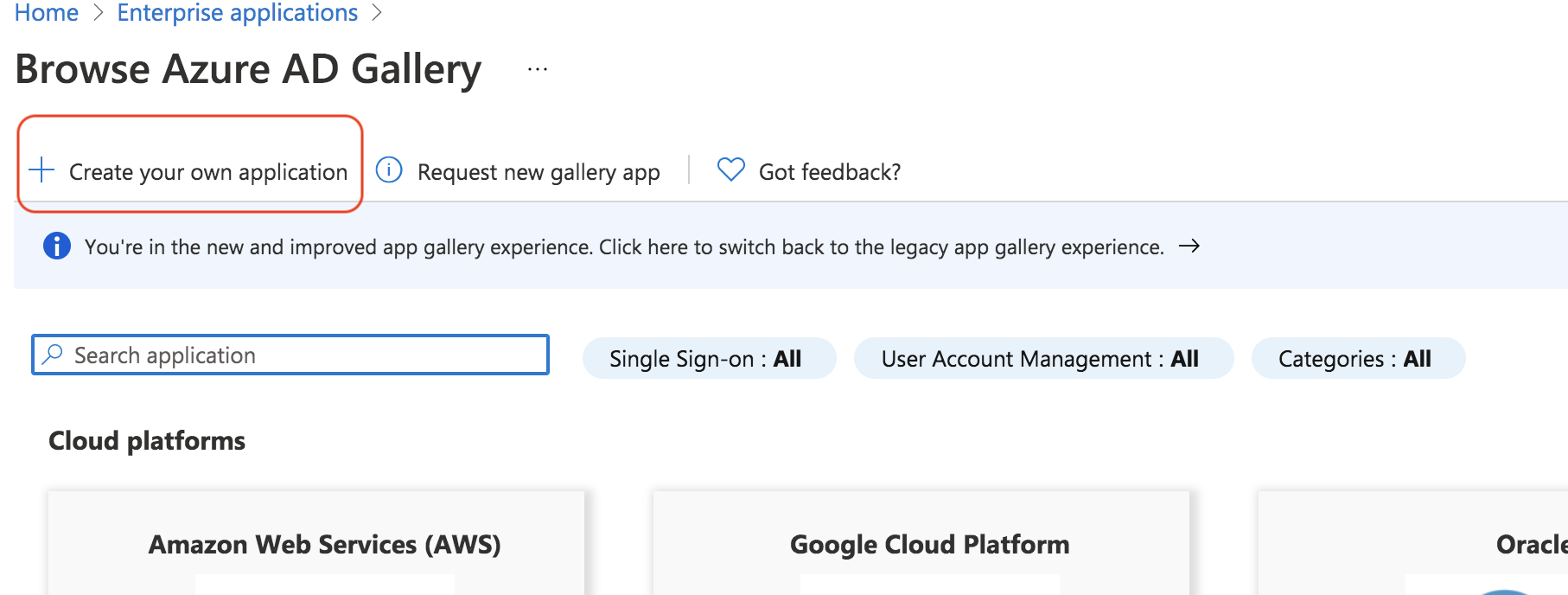
Click Create your own application
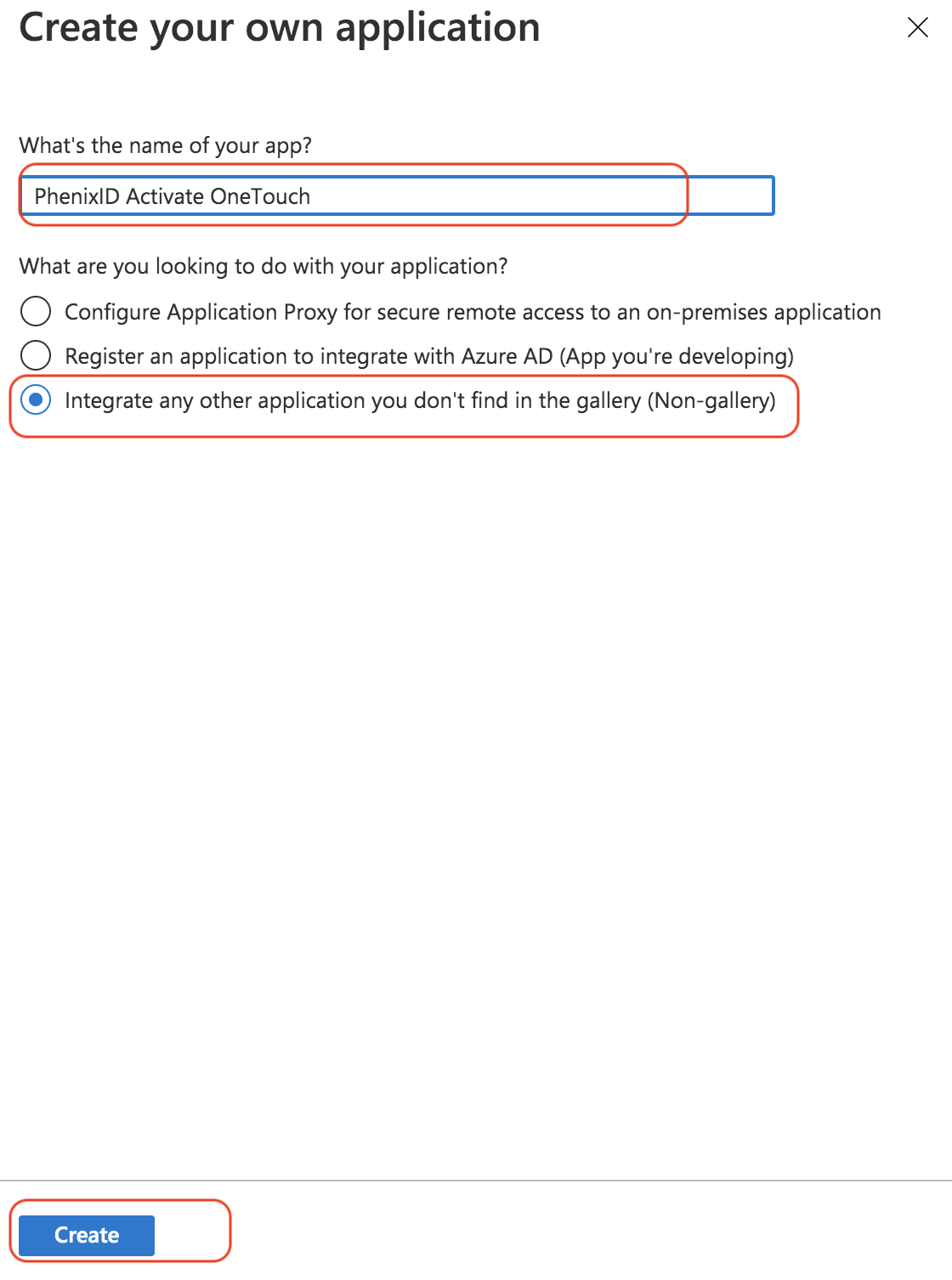
Enter a name for the application, select Integrate.. and click Create.
From Enterprise Applications -> All applications, click on the newly added application.
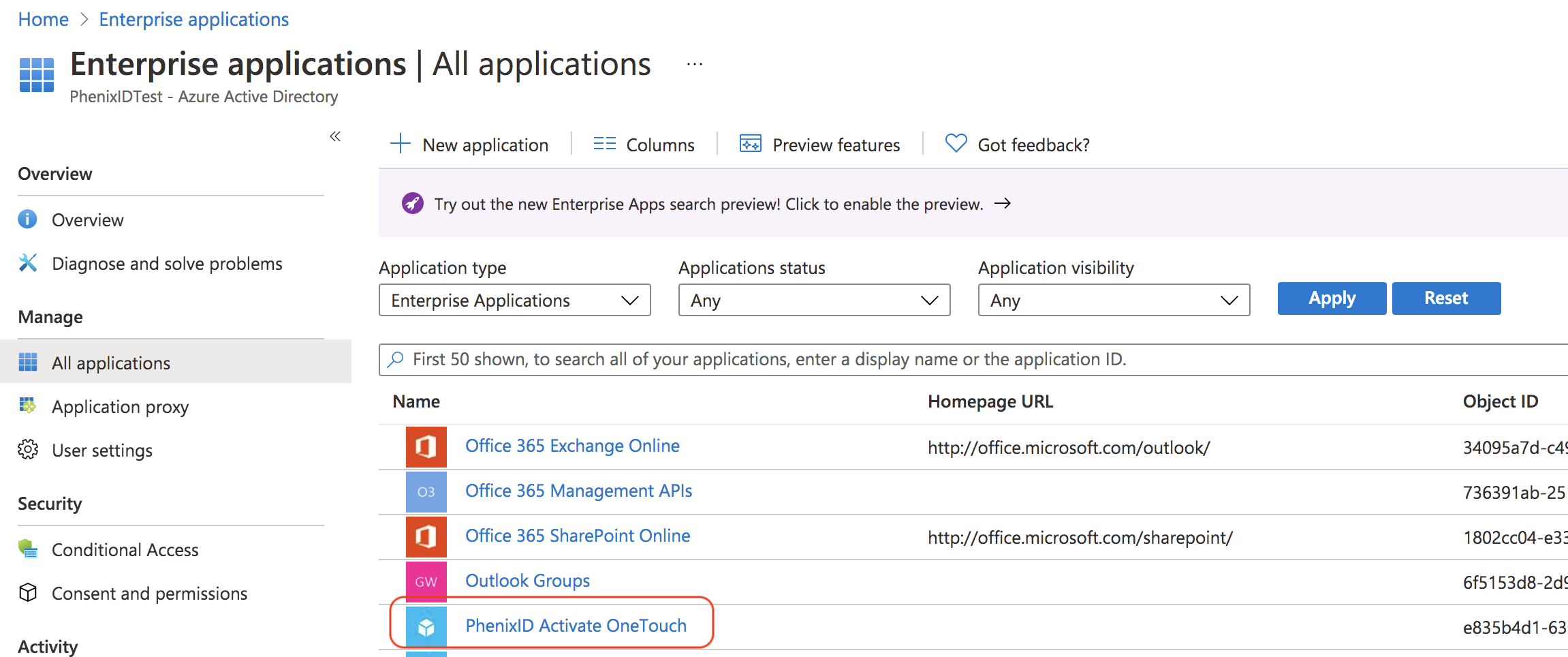
Click 1. Assign users and groups. Select which users should be able to login to the application.
Click 2. Set up single sign on
Select SAML
Click on Edit on the Basic SAML Configuration.

Add identifier (Entity ID). Use the value fetched in previous step. Select as default. Remove the previous identifier.
Add Reply URL (Assertion Consumer Service URL) . Use the value fetched in previous step. Select as default and remove (if any) already added urls.
Add Sign on URL. (optional) The URL that triggers SP-initiated SAML.
Add a logout URL. Use
https://<your_phenixid_idp>/saml/authenticate/logout/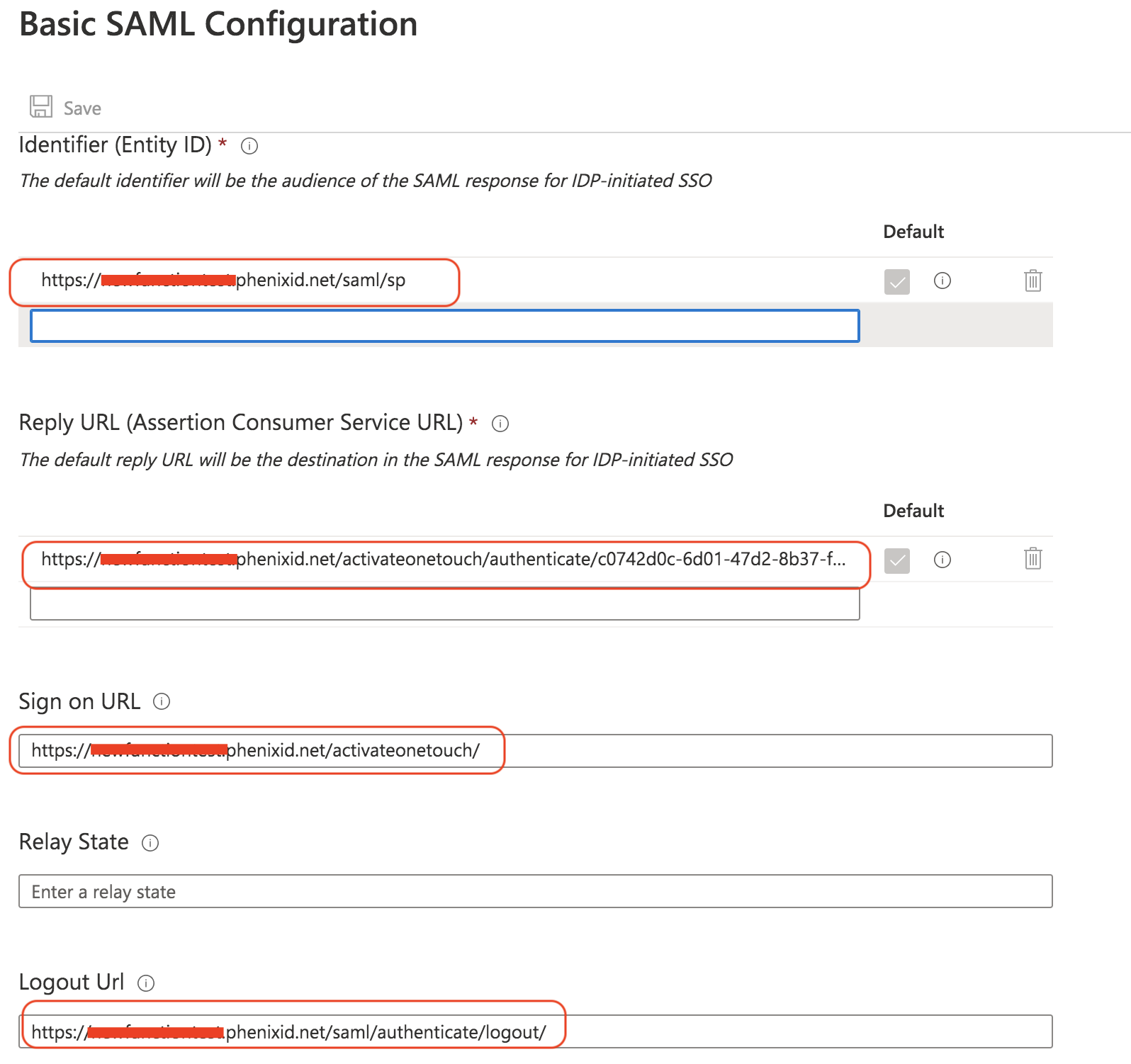
Click Save
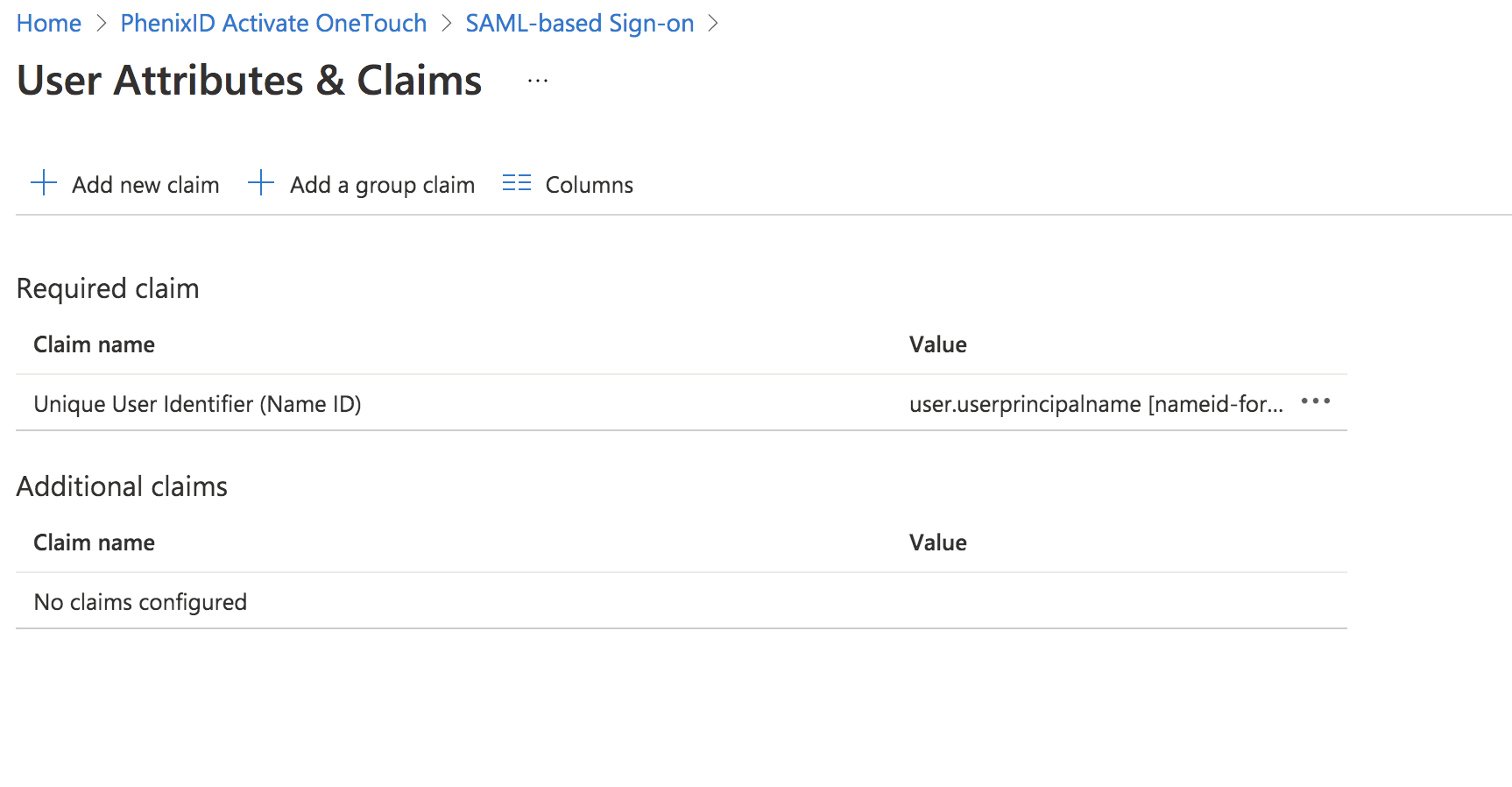
Click Edit to set SAML Attributes (claims)

Add/remove the user attributes (claims) you need for the federation to work out. This will differ from case to case. In this example the NameID claim is used only.
Click Download to get the Azure IdP SAML metadata
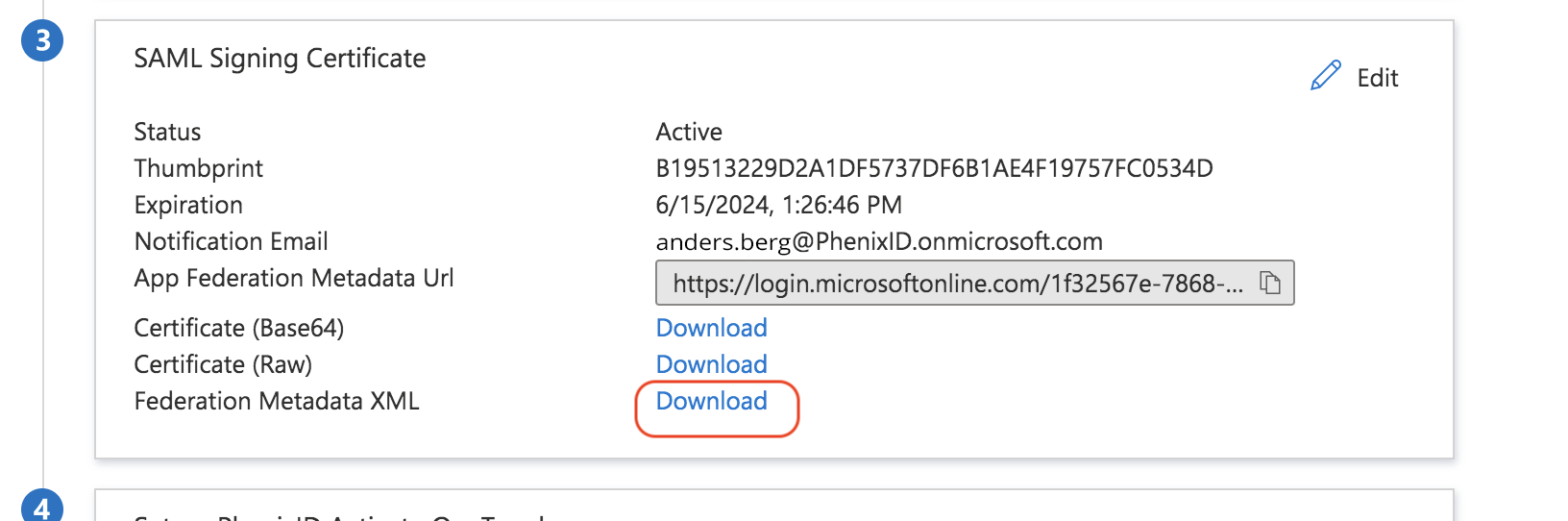
Open the downloaded file in a text editor
Fetch the entityID value of the IdP
Add trust to Azure AD on PhenixID Authentication Services
Upload Azure AD metadata
- Open Configuration Manager
- Scenarios->Federation->SAML Metadata upload
- Upload the downloaded Federation Metadata XML file from previous step
Set targetIdP
- Open Configuration Manager->Advanced->Authenticators-HTTP
- Locate the authenticator you previously created
- Set the targetIDP value to the IdP entityID value fetched in previous step.
Test
- Trigger the authentication flow where the Azure AD authentication is involved (for example
https://x.phenixid.net/activateonetouch) - Your browser should be redirected to the Azure AD IDP
- Authenticate using your azure ad users account
- Your browser should be redirected back to PhenixID Authentication Services with a SAML assertion containing the Azure AD userID (by default userPrincipalName)
- You should now be logged in to the service protected by Azure AD authentication
Debugging
- Use a SAML debugging tool, such as SAML Tracer, to retrieve the SAML messages
- Use PhenixID server.log in debug mode to find